
Free
€0.00
Any number of sites
- All Free features
- Updates from WordPress.org
- WordPress.org support forum
GioCompress
GioCompress converts JPG and PNG uploads to WebP on your own server and optimizes the images already in your media library. The Pro add-on adds AVIF output, quality and resize controls, original file backups and an optimization report.
The problem
Photos from a phone or exports from a design tool are often uploaded as large JPG or PNG files. WordPress keeps them as they are and builds every thumbnail from them.
Converting each file before uploading takes time, and the images already in the media library stay as they were.
Each feature shows where you find it in GioCompress and whether it is part of the Free version or the Pro add-on.
JPG and PNG files are converted to WebP as they are uploaded, before WordPress creates the thumbnails. Every image size is generated from the optimized file.
Every upload to the media library
RetroOptimize lists the JPG and PNG images that are not optimized yet. Convert a selection or the whole list: thumbnails are converted too, image URLs in your content are updated and old file URLs redirect to the new ones.
Free: 5 images per day. Pro: no daily limit.
GioCompress → RetroOptimize
Adds loading="lazy" to images on your pages. The first images on the page and images marked as high priority are left as they are.
GioCompress → Settings → Enable Lazy Loading
Fills empty alt attributes when a page is displayed, using the image alt, title, caption or description, then the post title or file name. Nothing is written to the database.
GioCompress → Settings → Generate Missing Alt Text
Choose AVIF instead of WebP as the output format. Available when your server’s Imagick or GD build supports AVIF.
GioCompress → Settings → Output Format
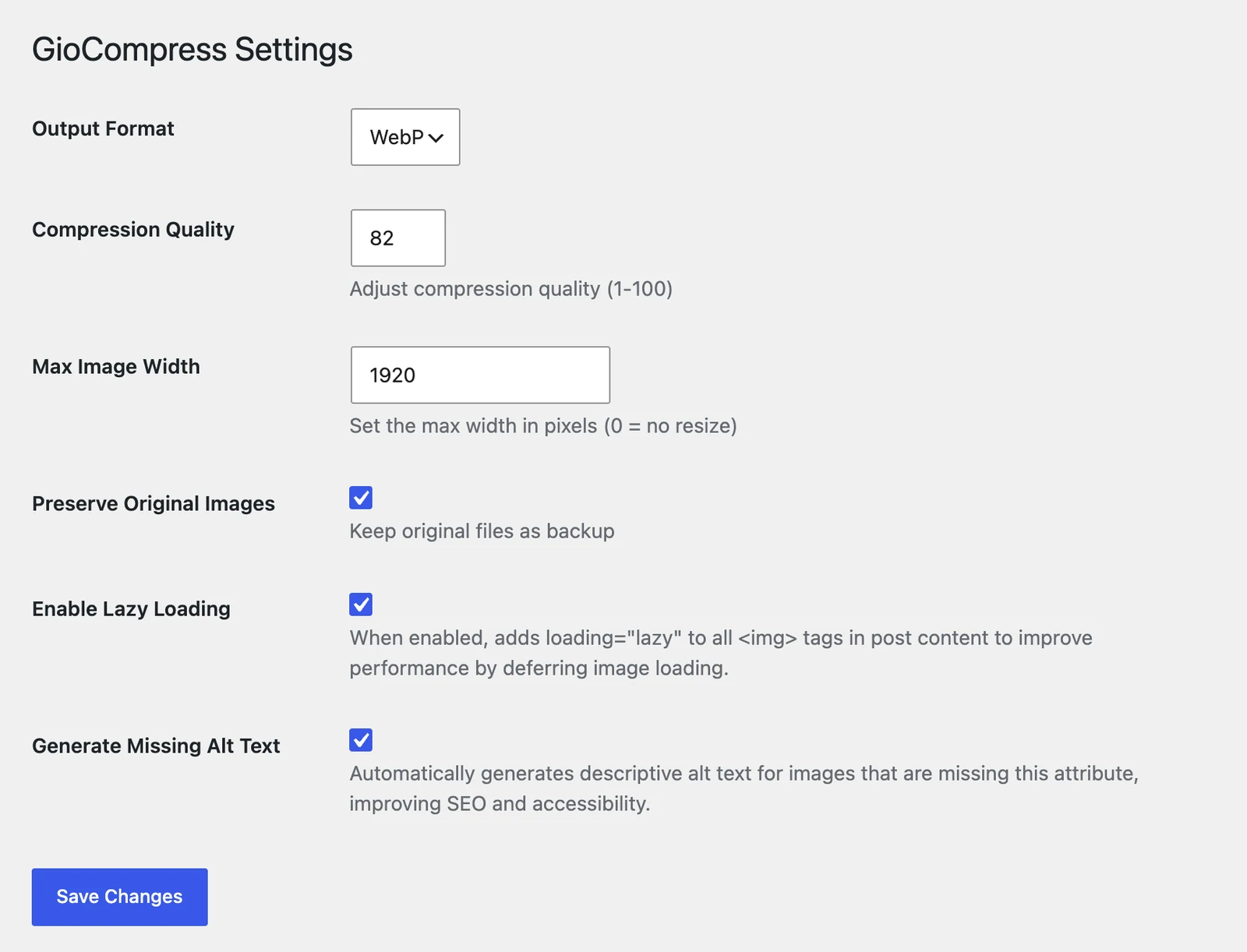
Set the compression quality from 1 to 100 and a maximum width in pixels for new images. The Free version uses a fixed quality of 95 and keeps the original dimensions.
GioCompress → Settings
Keep the original JPG or PNG as a backup. In the Free version the original file is removed after conversion.
GioCompress → Settings → Preserve Original Images
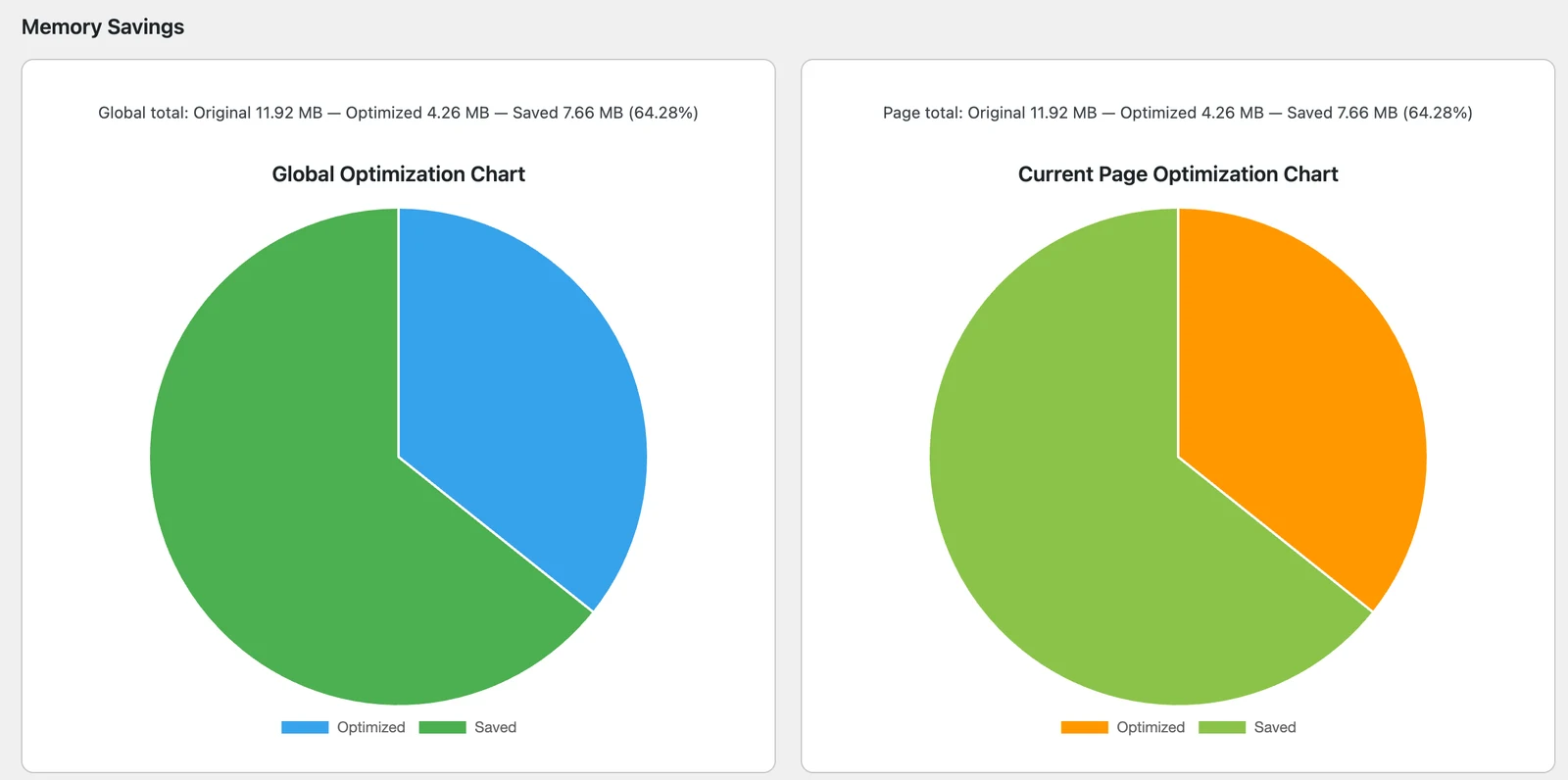
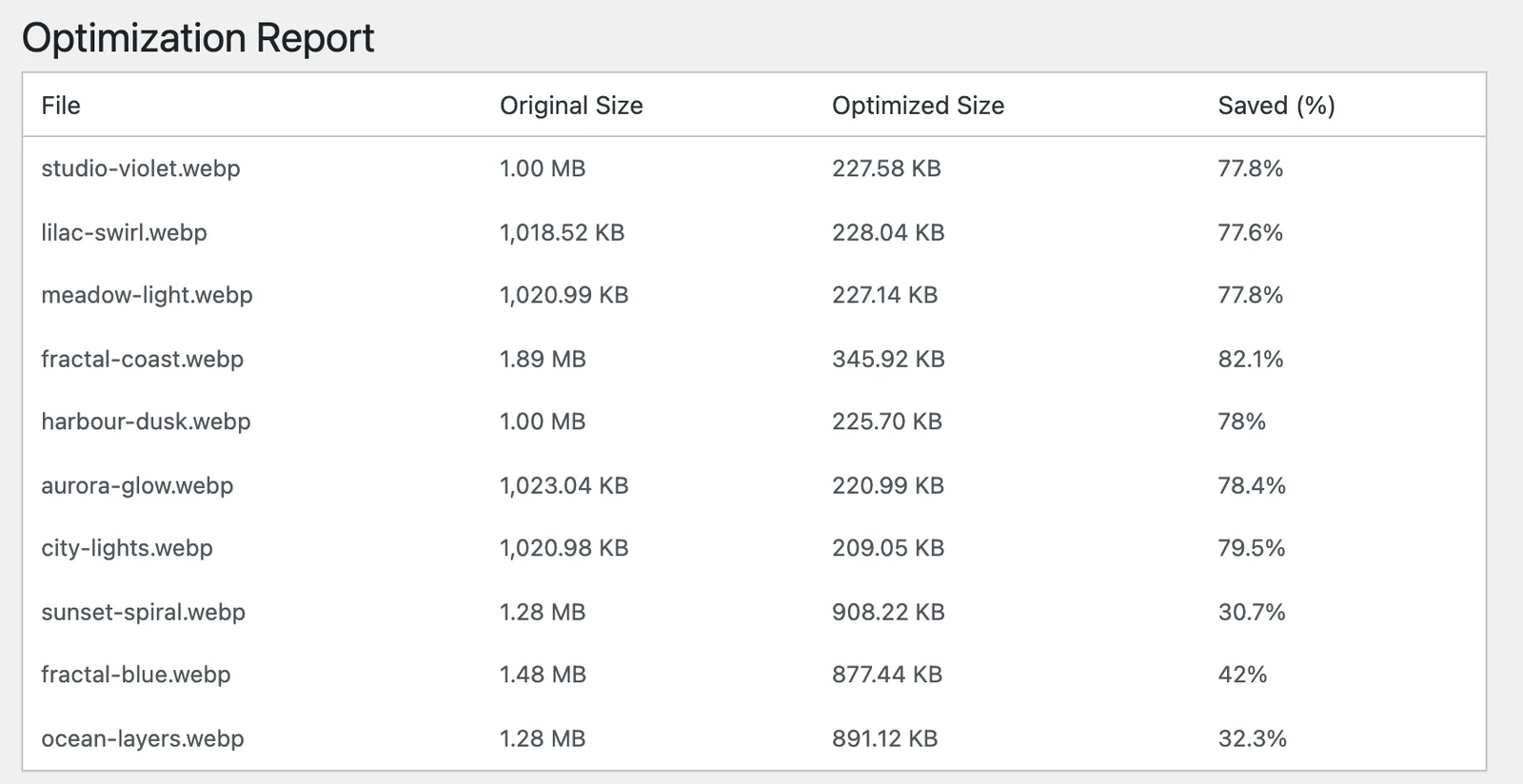
See the original size, optimized size and saved percentage of each file, with totals and charts. In the Free version this page shows sample data.
GioCompress → Report
Removes optimization records that point to attachments which no longer exist.
GioCompress → Settings → Orphaned Data Cleanup
GioCompress
GioCompress → RetroOptimize: select the JPG and PNG images to convert and follow the progress. Demo site with sample images, recorded in real time.
GioCompress → Settings with the Pro options: output format, compression quality, maximum width and original file backup.
Report (Pro): original, optimized and saved size for the whole library and for the current page. Figures from a test site.
Report (Pro): original size, optimized size and saved percentage per file.
GioCompress is free on WordPress.org. The Pro add-on unlocks the features marked Pro and is licensed per site, billed yearly.
| Feature | Free | Pro |
|---|---|---|
| Convert JPG and PNG to WebP on upload | Included | Included |
| Optimize existing images (RetroOptimize) | 5 per day | No daily limit |
| Lazy loading | Included | Included |
| Missing alt text | Included | Included |
| AVIF output (server support required) | Not included | Included |
| Compression quality | Fixed at 95 | 1–100 |
| Maximum image width | Not included | Included |
| Original files | Removed after conversion | Keep or remove |
| Optimization report | Sample data | Your site’s data |
| Orphaned data cleanup | Not included | Included |
| Plugin updates | From WordPress.org | From giosuite.com while the license is active |
€0.00
Any number of sites
€19.00/year
Billed yearly
€39.00/year
Billed yearly
€129.00/year
Billed yearly
Buying a license requires a GioSuite account, where you manage your sites, API keys and downloads.
JPG and PNG. GIF files and images that are already WebP are left unchanged.
No. Conversion runs on your server with GD or Imagick. The Pro add-on contacts giosuite.com only to check your license and updates, and sends a daily status check with your site’s domain and an installation ID.
Pro removes the daily limit for existing images and adds AVIF output, compression quality, maximum width, original file backup, the optimization report and orphaned data cleanup.
1, 3 or 30 sites, depending on the plan. Add each site’s domain in the Licenses section of your account.
The Pro features switch off and GioCompress keeps working with the Free features. Pro updates stop until you renew.
Yes. Contact support and we will help you upgrade, applying the remaining value of your current license whenever possible.
There are no reviews for this plugin yet.
Please log in to leave a review.
Start with the Free version and add Pro when you need the extra features.